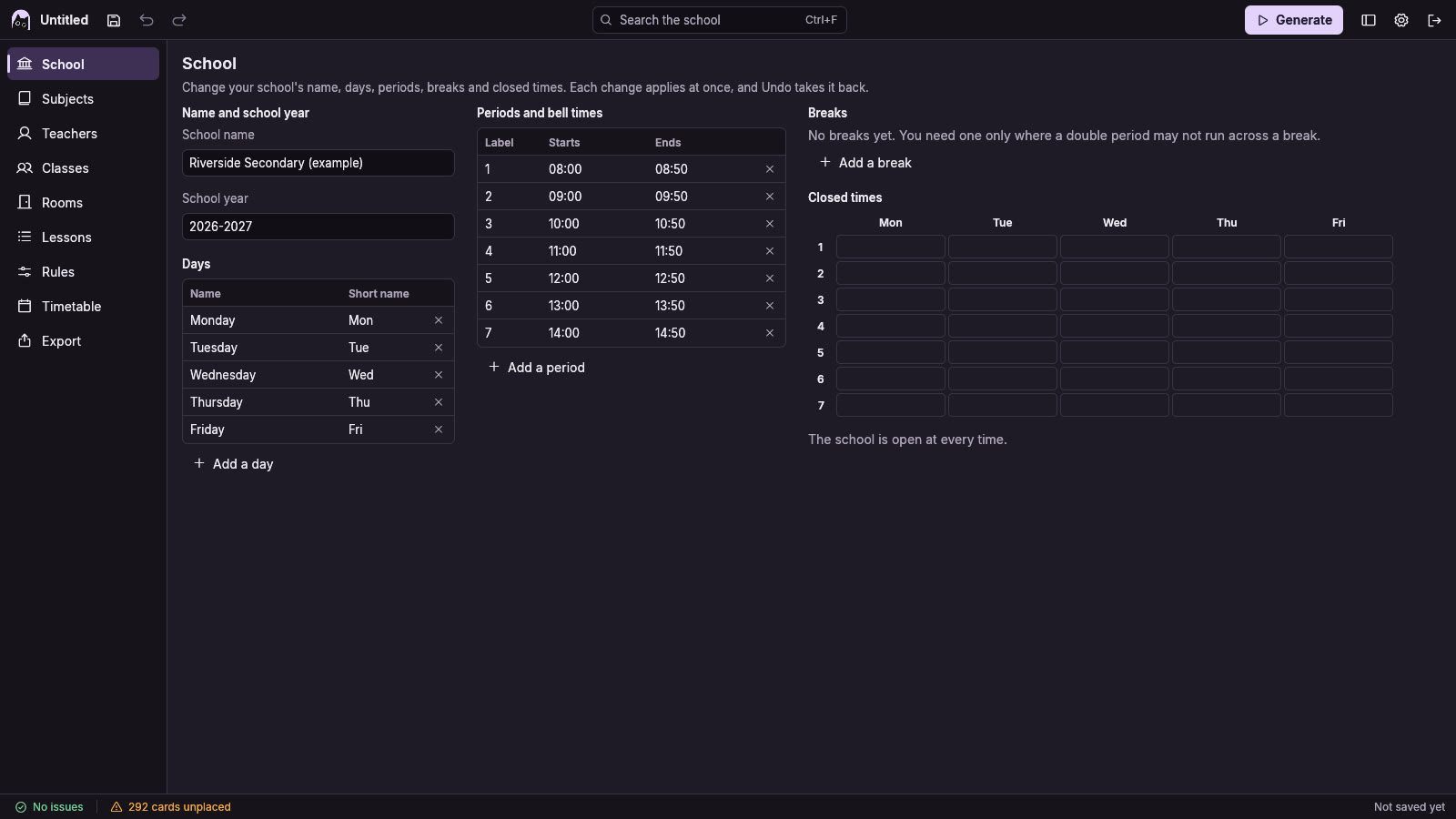
Enter your teachers, classes, rooms and lessons. The app places every lesson so that no teacher, class or room is ever in two places at once, and every class gets all its periods.
Not needed. It can send a usage ping and error reports, each with its own switch.
Price
Free for personal and commercial use, and every new release stays free.
Status
Version 1.0 Beta
01
How it works
Data → Generate → Fix → Print
Fill in your school once. The app builds the timetable, you fix the details, and you print it.
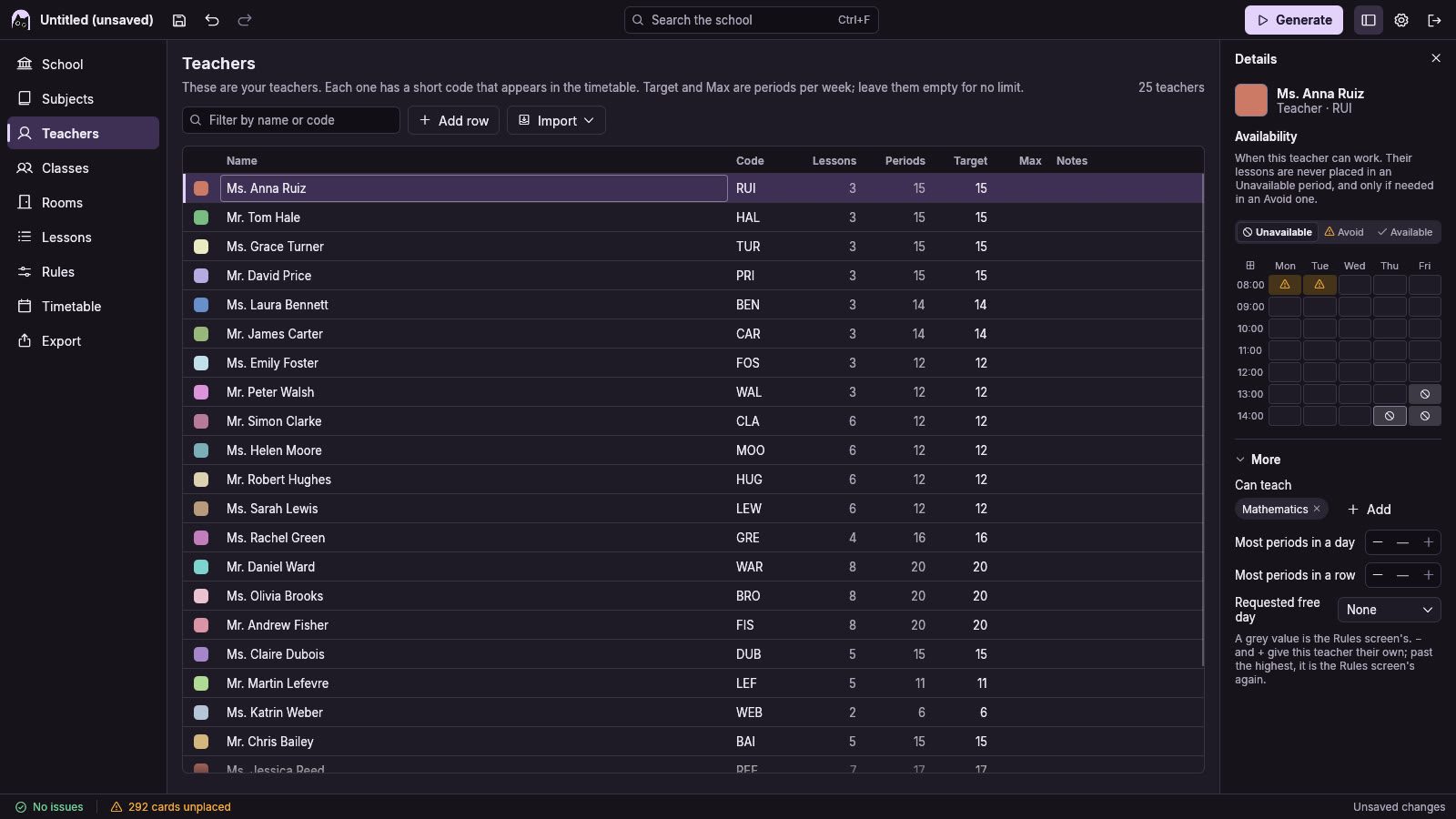
The Teachers table, with a teacher’s availabilityScreen capture
01 / 04
Your school
Fill it in once
Subjects, teachers, classes and rooms are tables, one row each. A lesson says who teaches what to whom, and how often: Ms. Ruiz teaches Mathematics to 7B, 4 periods a week, split 2+1+1.
Paste
Copy rows in your spreadsheet and paste them into a table, with a preview first.
Import
From a spreadsheet or a CSV file. The app saves an empty template to fill in.
Availability
Paint when a teacher, class or room is Unavailable, to Avoid, or Available.
Lessons
As a list, or as a matrix of subjects and classes.
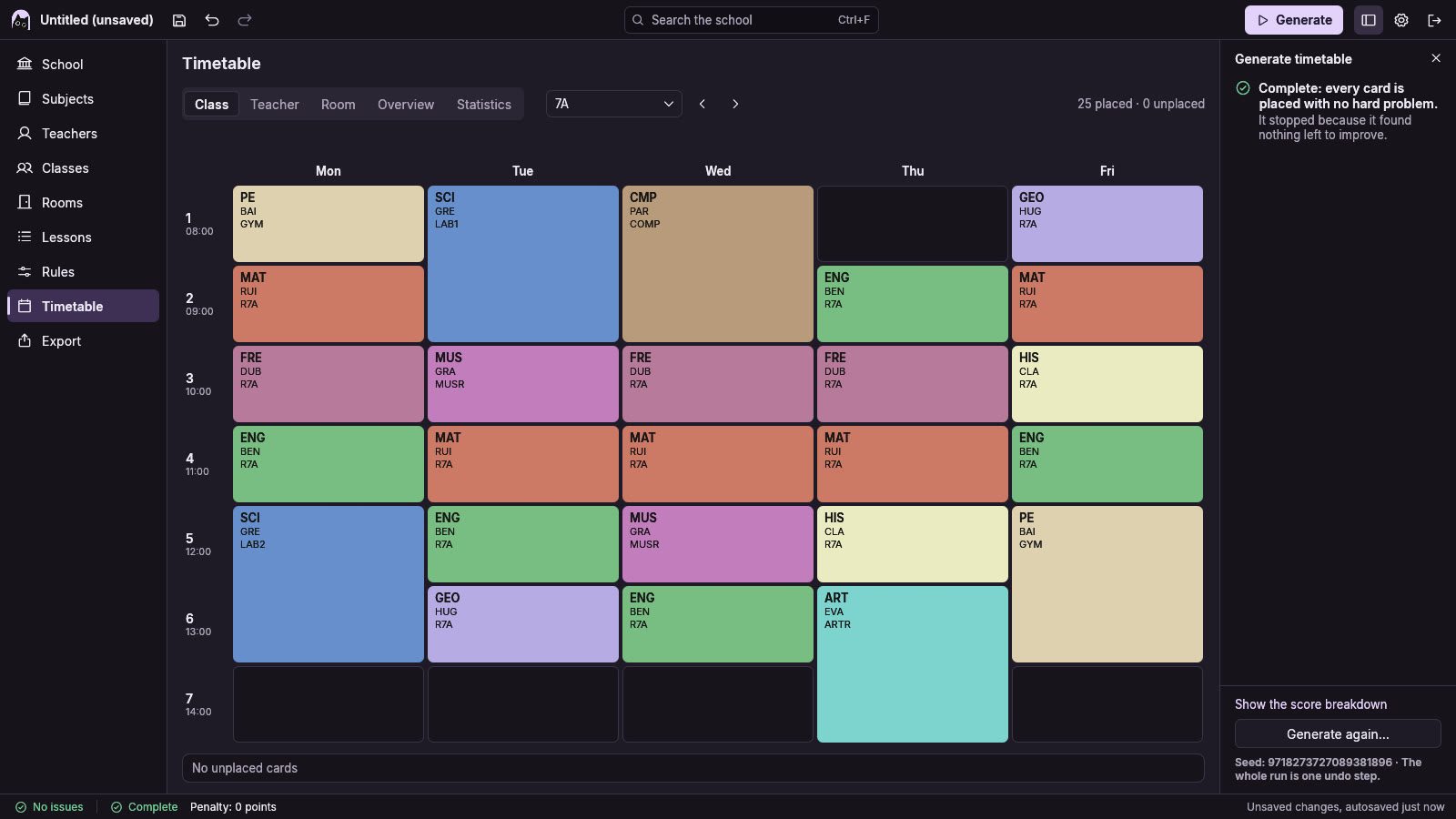
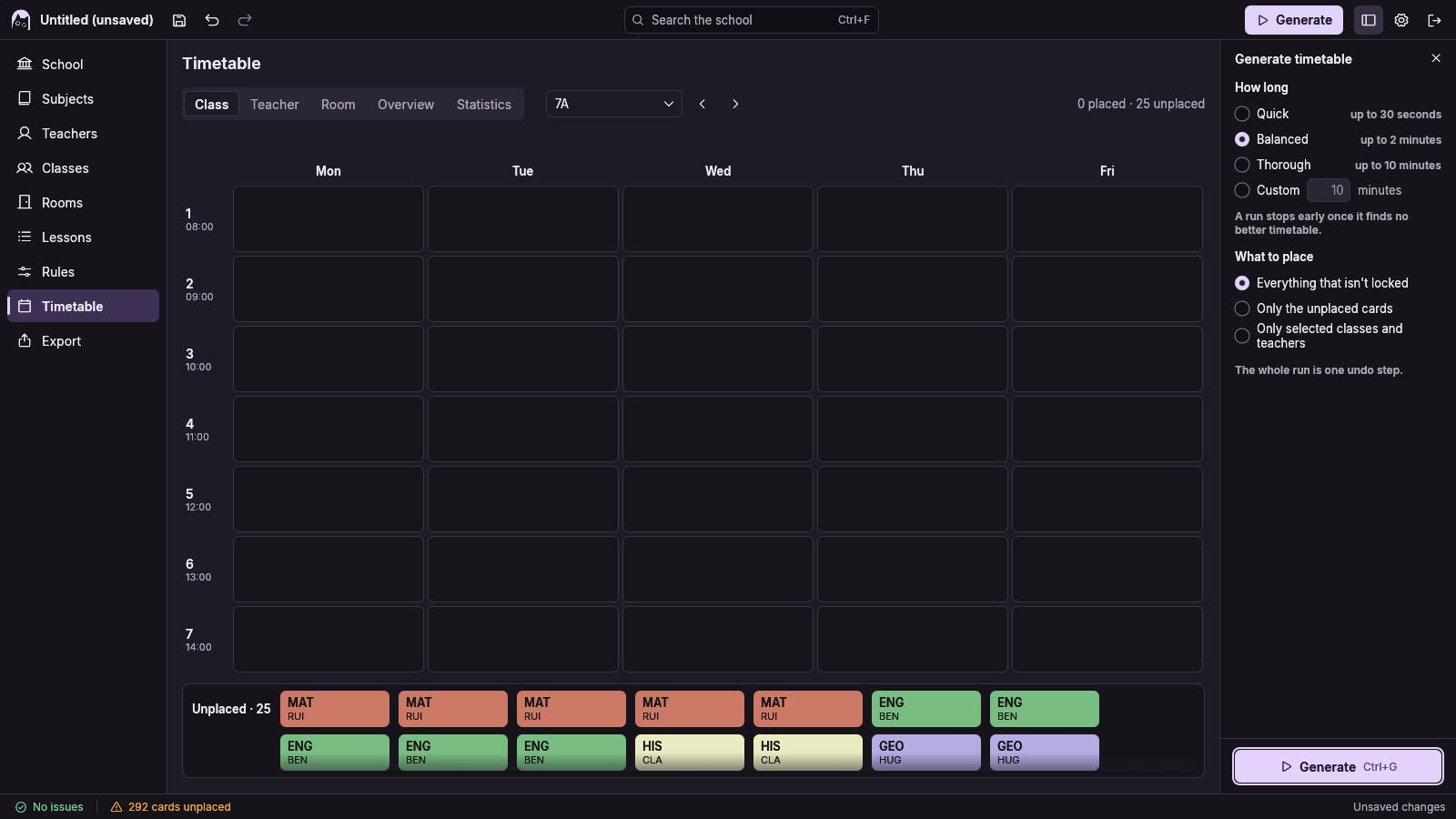
Click Generate. The app places your lessons’ cards, keeping every rule that is always kept and as many of your other rules as it can. Stop at any time and keep the best timetable found so far.
How long
Quick, Balanced, Thorough, or as many minutes as you type.
What to place
Everything that isn’t locked, only the unplaced cards, or only the classes and teachers you tick.
Result
Complete, or a list of the cards still unplaced, with why.
Drag a card to another time. While you drag, every time where it could start gets a mark: Fine; Allowed, but some preferences get worse; Clash; Not possible.
Views
By class, teacher or room, and an overview of every class at once.
Lock
Locked cards stay where they are when you generate again.
Tray
Unplaced cards wait under the grid. Select one to see why it isn’t placed.
Statistics
Each teacher’s, class’s and room’s periods, gaps and use.
Some things are always kept, whatever you set. A timetable is complete only when every card is placed and none of these is broken.
Everything else is a rule you set, written as a sentence, such as “Students have no free periods between their lessons.” Each has a strength, from Off to Must, and can work differently for one teacher, class, subject, room or lesson.
A class, or a group of it, is never in two lessons at once.
03
Rooms
A room never holds more lessons at once than it takes, a lesson gets the rooms it asks for, and they have enough seats.
04
Unavailable
Nothing is placed at a time marked Unavailable for the school, a teacher, a class, a room, a subject or a lesson.
05
Doubles
A double period stays within one day and never runs across a break that blocks doubles.
06
Locked
A locked card never moves.
03
Your work is safe
One file, kept
Your whole school, with its timetable, is kept in one project file on your own computer.
01
Offline
The app works without the internet. It can send a usage ping and error reports, only the ones you allow, and never your school’s data. No update checks, no accounts.
02
Autosave
While you have unsaved changes, the app saves them every minute to a recovery copy. It never writes over your file: only Save does that.
03
Recovery
If the computer crashes or the power goes, the next start asks whether to recover the unsaved work.
04
Backups
Before a save writes over your file, the app keeps a backup of it. It keeps the newest 10 of each project.
05
Newer files
A file made by a newer version opens read-only. The original is not changed.
06
Undo
Every change can be taken back, one step at a time.
04
Mouse or keys
Both work
Everything in the app works with the mouse, and most of it with the keyboard too.
The app checks your data whenever you change it, and says in a plain sentence what can’t work, such as a teacher who teaches more periods than they are free for.