Free for personal and commercial use, and every new release stays free.
Status
Version 1.0 Beta
01
The loop
Import → Cull → Caption → Deliver
Sift follows the order of a job, from the card to the client.
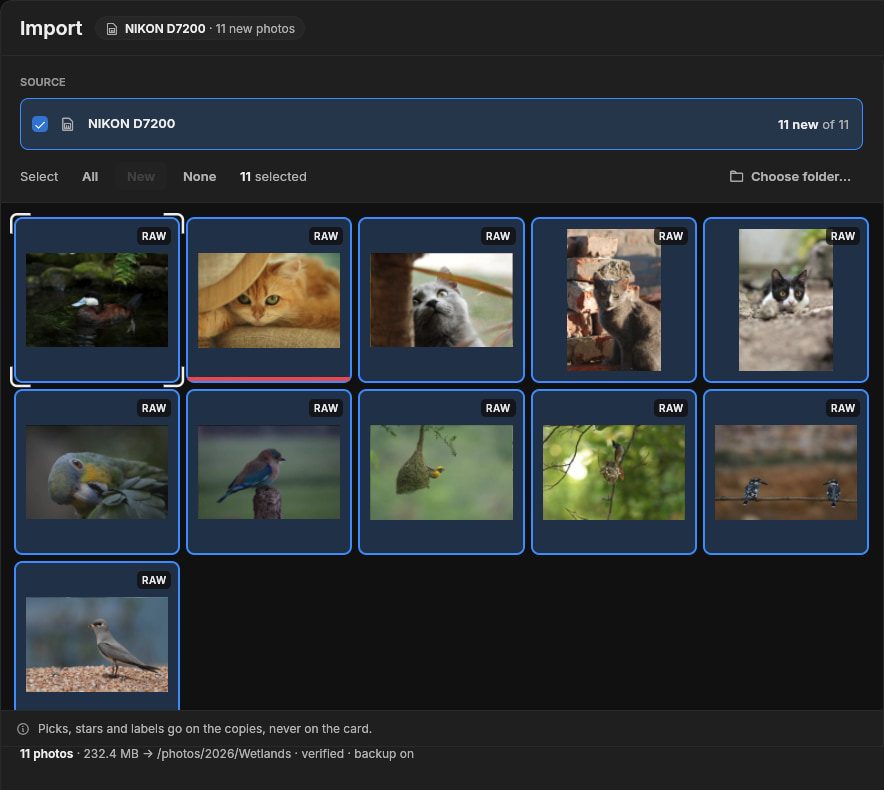
The Import sheet, reading a cardScreen capture
01 / 04
Import
Card to disk, checked
Copy photos from a card or a folder to your disk, with a second copy on a backup drive if you want one. Every copy is read back and compared with the original before it gets its final name.
Source
Only read. Sift never writes to a card.
Verified
Each copy, and each backup copy.
Names
Kept as the camera wrote them, or renamed from a template.
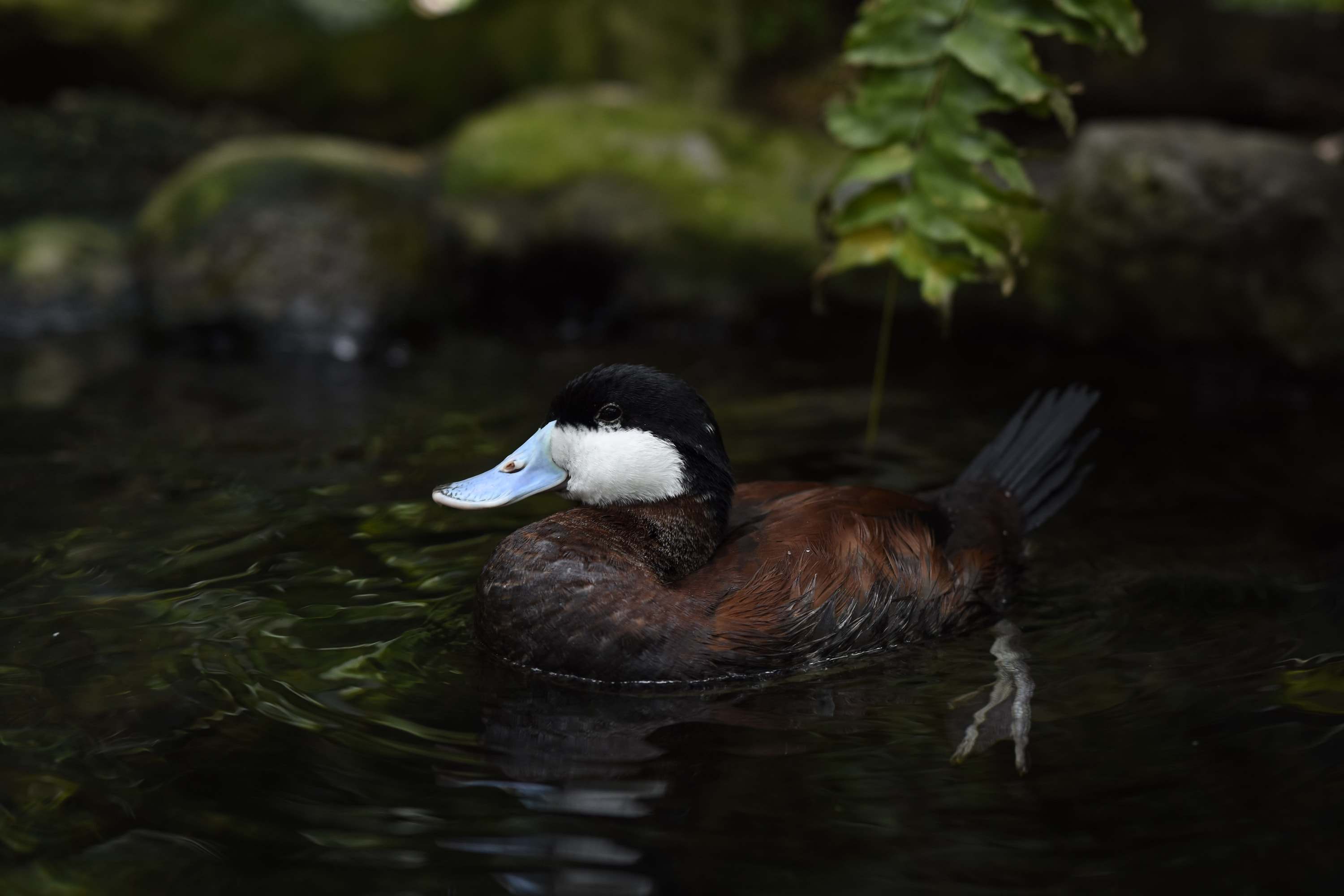
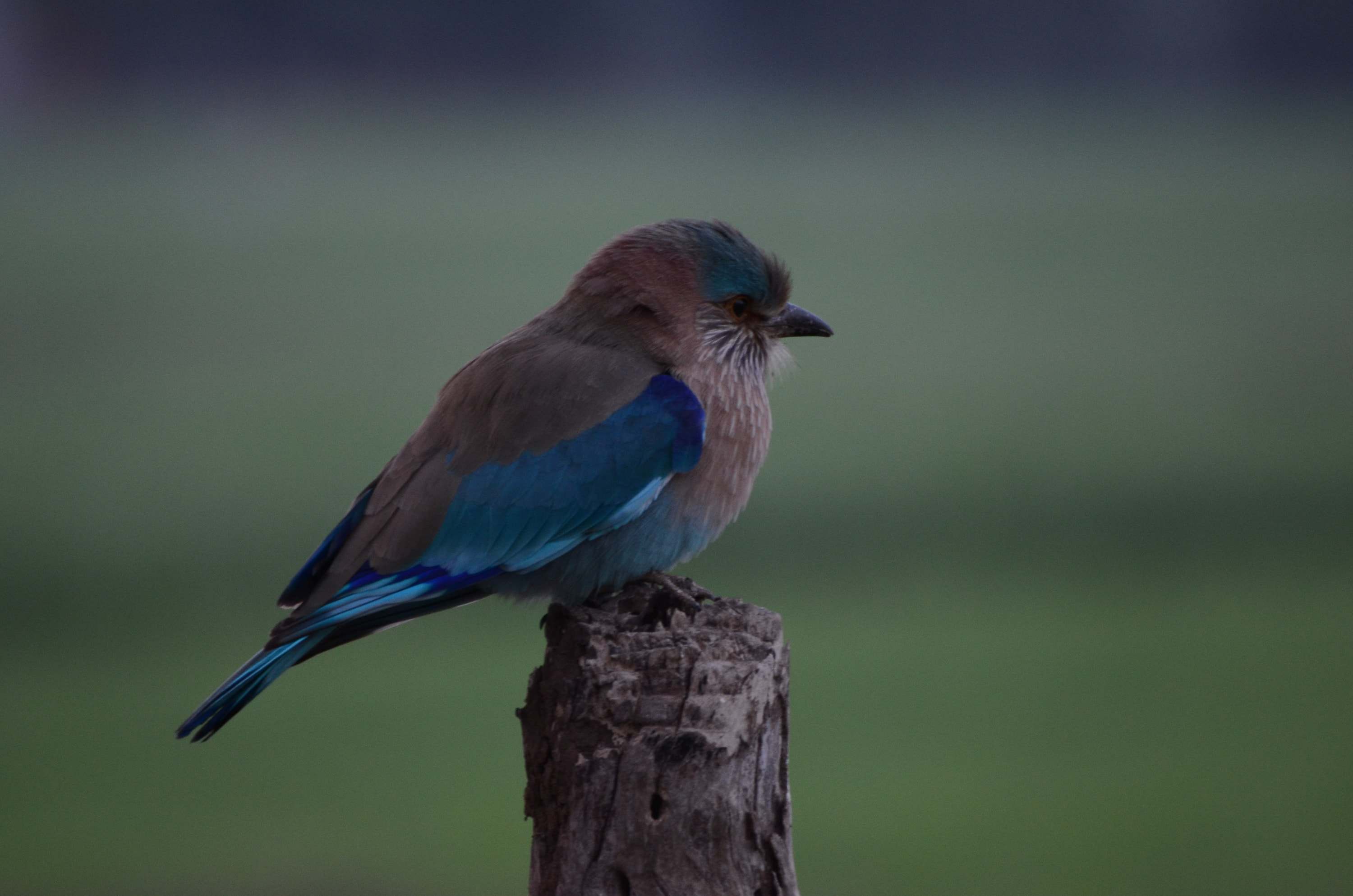
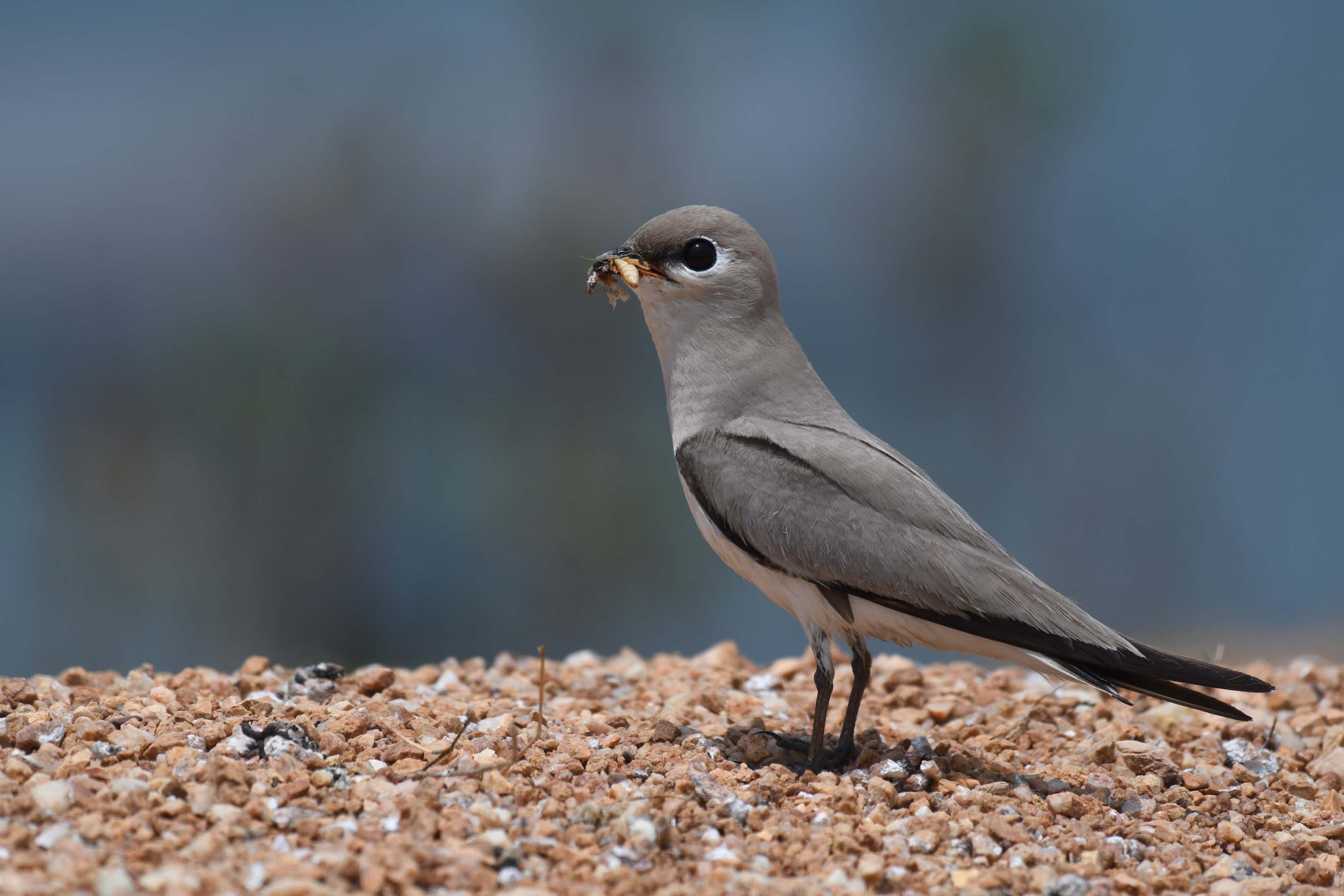
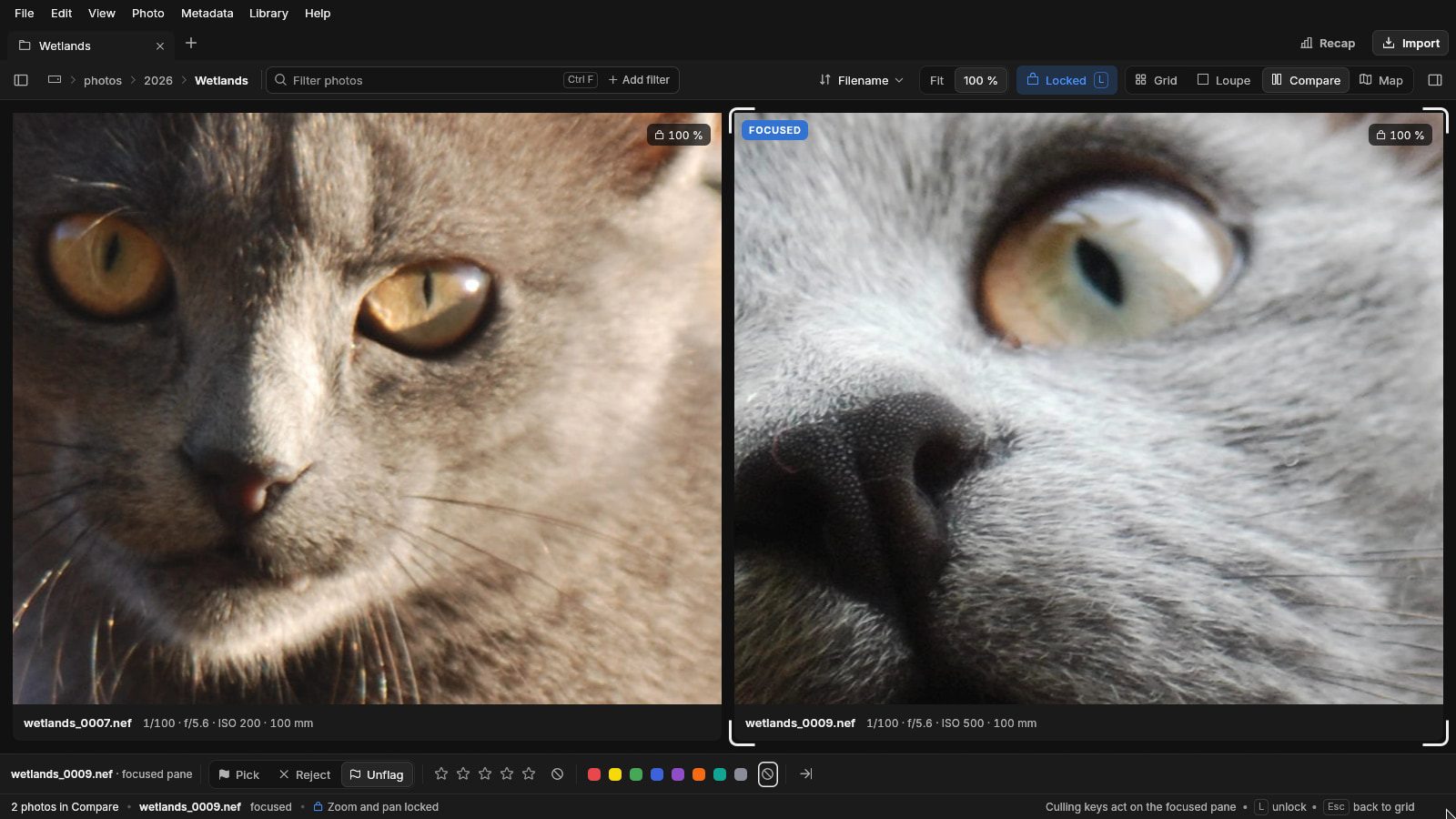
Compare, zoomed to 100 %Photos: @pekhenko_work · signatureedits.com
02 / 04
Cull
One key per decision
Pick, reject, rate and label with single keys, and undo any of it. Compare two to four frames side by side, or tile a whole selection and narrow it down.
Views
Grid, Loupe, Compare and Survey.
Bursts
Can collapse into stacks, with the sharpest frame marked.
Focus
Zoom to the point the camera focused on. Show focus peaking and clipping.
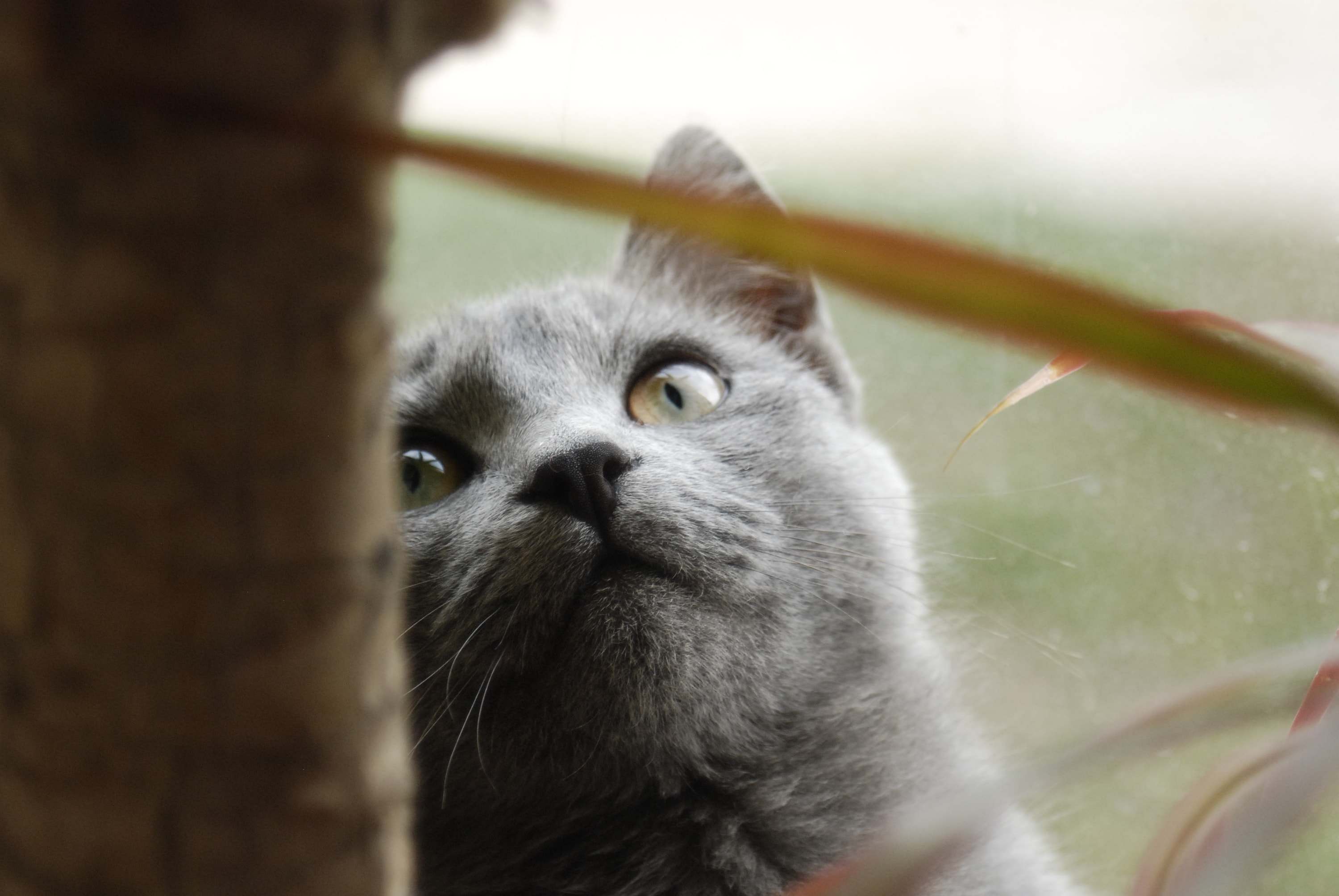
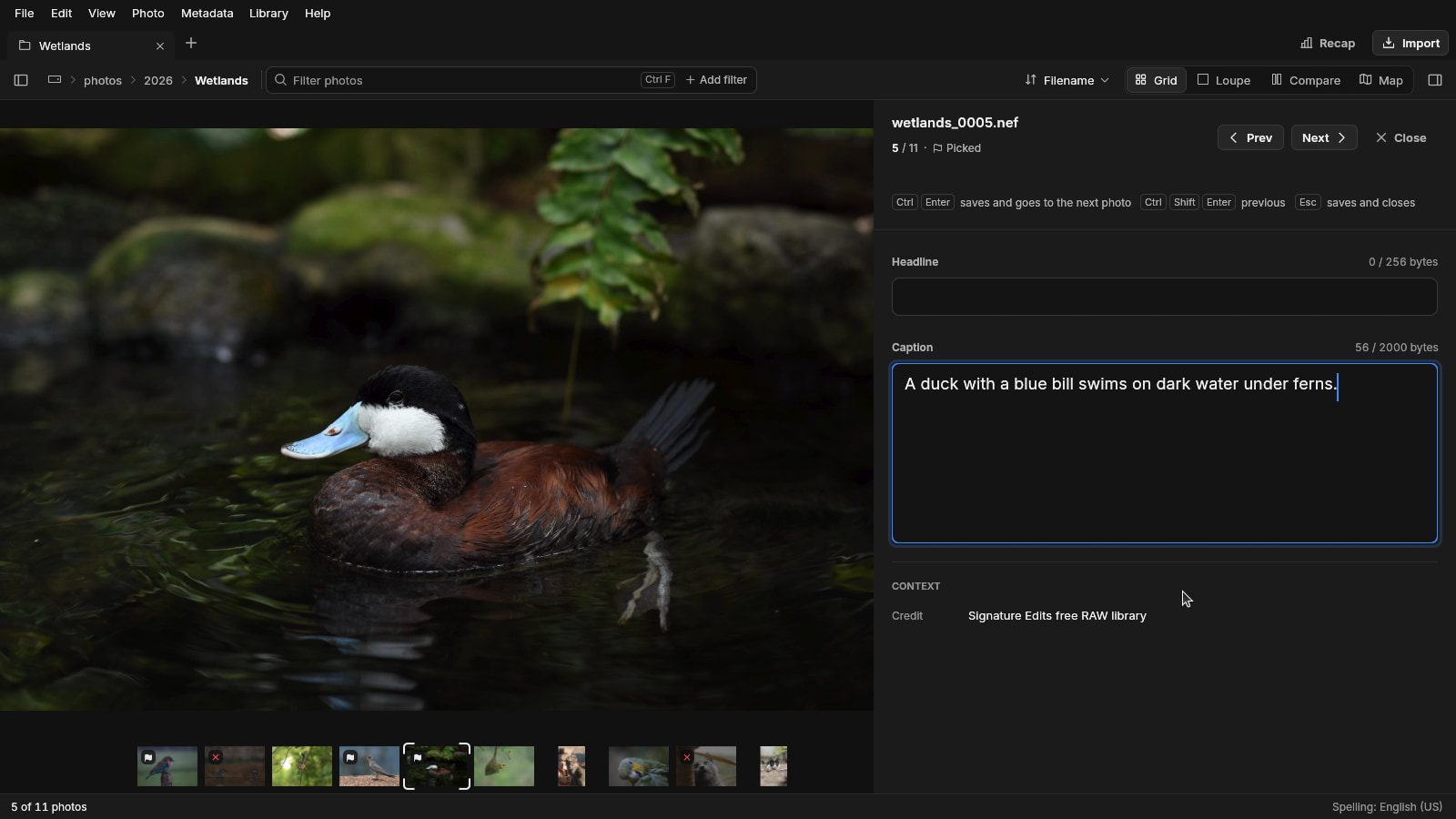
Caption mode, after a snippetPhoto: @MuzeTheFuze · signatureedits.com
03 / 04
Caption
Words that travel with the photo
Write headlines, captions, credits and keywords, for one photo or for many at once. Templates fill the fields you repeat, and snippets turn a short code into longer text as you type.
Writes
Standard IPTC and XMP.
RAW files
An .xmp sidecar next to the file. The RAW is never modified.
Many at once
Templates, paste metadata, find and replace.
Also
Rename from a template. Fix a wrong camera clock with Time Sync.
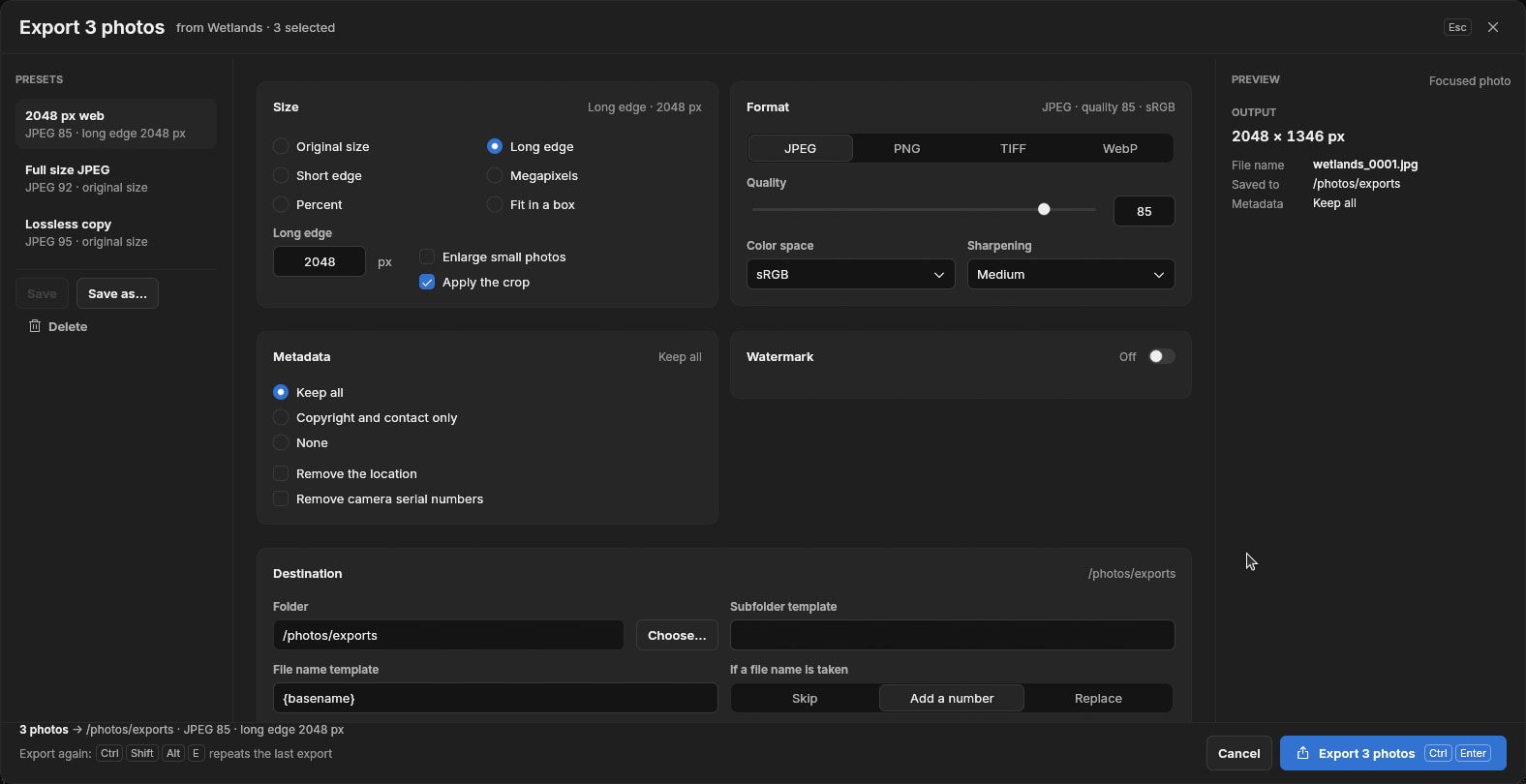
Export at the size your client wants, send to an FTP, FTPS or SFTP server in a background queue, or make a PDF contact sheet or a web gallery. All of these create new files and never change your originals.
Formats
JPEG, PNG, TIFF and WebP.
Send
FTP, FTPS and SFTP. Failed uploads are retried, and the queue survives a restart.
Auto-send
Sends each photo the moment you pick it.
Also
Contact sheets, web galleries, caption lists as CSV, JSON or XML.
From starting Sift to its first frame on screen, with a folder of 2,000 photos open.
0.22 s
To fill the first screen with thumbnails, in a folder of large RAW files opened for the first time.
30 a second
Photos shown sharp in the loupe while the arrow key is held down.
Measured on a desktop computer: AMD Ryzen 7 9800X3D, Ubuntu 24.04.
03
Your files are safe
Six rules
How Sift treats the photos you point it at.
01
RAW files
Never changed. Not one byte. Ratings and captions for a RAW file go in an .xmp sidecar next to it.
02
Camera cards
Only read. Sift never writes to a card, and it refuses to import onto one.
03
Copies
Verified. After a copy is written, Sift reads it back from the disk and compares it with the original.
04
Delete
Goes to the system trash and can be undone. Permanent delete is a separate command, and it asks first.
05
Edits
Written to a journal first, then to the file. If the computer stops mid-write, the next launch finishes or repairs the change.
06
Privacy
Your photos, file names and captions never leave your computer. Sift can send a usage ping and error reports, and each has its own switch. The update check is off by default, and map tiles load only while the Map is open.
04
Works with the rest
Standard IPTC and XMP
Sift writes standard IPTC and XMP metadata. Lightroom, Capture One, Bridge, Photo Mechanic and darktable read it.
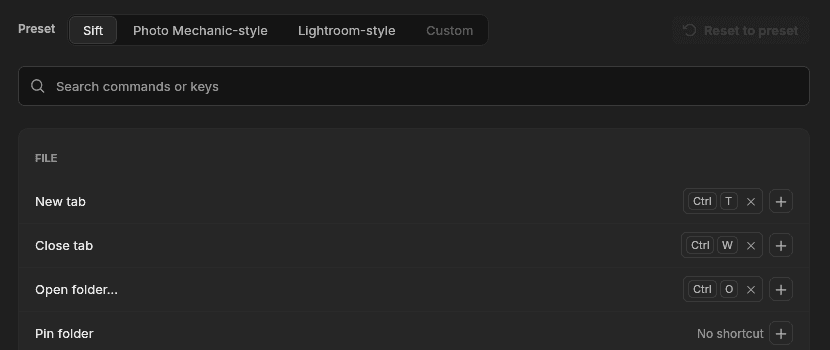
Keymap presets in SettingsInterface render
01
Keymaps
Sift, Photo Mechanic-style or Lightroom-style. If you know another app’s keys, choose its keymap in Settings.
02
Color labels
Apps match color labels by name. Choose whose names Sift writes: Lightroom Classic, Adobe Bridge, darktable, Capture One or Photo Mechanic. It reads every app’s names.
03
Sidecars
Sift keeps every property already in a sidecar, including Lightroom develop settings.
04
Snippets
It reads Photo Mechanic code replacement files as they are. A roster from a newsroom works unchanged.
05
Keywords
It loads a keyword list exported from Lightroom Classic as a controlled vocabulary.
05
Keyboard first
Every action is a command
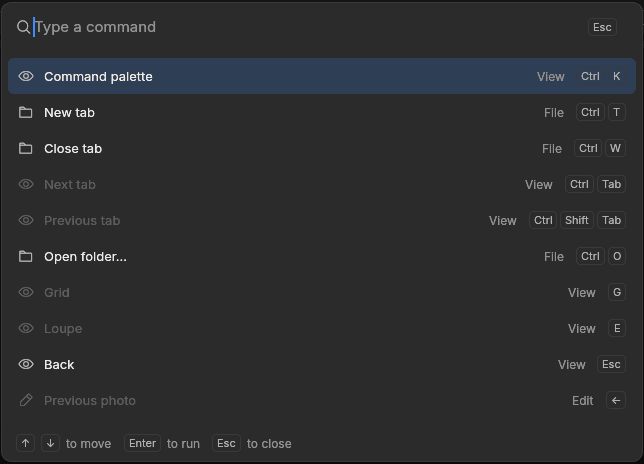
Every action is a command, and every command is in the command palette. Press Ctrl+K and type what you want to do.
The command paletteInterface render
A few of the keys
Key
What it does
CtrlK
Command palette
P
Pick
X
Reject
1–5
Stars
6–9
Color labels
A
Auto-advance on or off
E
Loupe
G
Grid
C
Compare
N
Survey
Z
Zoom to 100%
CtrlZ
Undo
?
Cheat sheet of the current keys
These are the keys of the default Sift keymap. On a Mac, read Ctrl as ⌘.